ثبت نام / ورود
0
ثبت نام / ورود
0
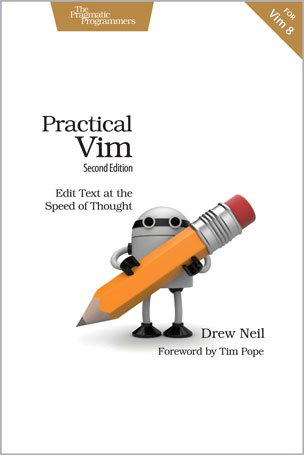
Edit Text at the Speed of Thought
Drew Neil
#Vim
#Developer
#OS
#Quickfix
Vim is a fast and efficient text editor that will make you a faster and more efficient developer. It's available on almost every OS, and if you master the techniques in this book, you'll never need another text editor. In more than 120 Vim tips, you'll quickly learn the editor's core functionality and tackle your trickiest editing and writing tasks. This beloved bestseller has been revised and updated to Vim 7.4 and includes three brand-new tips and five fully revised tips.
A highly configurable, cross-platform text editor, Vim is a serious tool for programmers, web developers, and sysadmins who want to raise their game. No other text editor comes close to Vim for speed and efficiency; it runs on almost every system imaginable and supports most coding and markup languages.
Learn how to edit text the "Vim way": complete a series of repetitive changes with The Dot Formula using one keystroke to strike the target, followed by one keystroke to execute the change. Automate complex tasks by recording your keystrokes as a macro. Discover the "very magic" switch that makes Vim's regular expression syntax more like Perl's. Build complex patterns by iterating on your search history. Search inside multiple files, then run Vim's substitute command on the result set for a project-wide search and replace. All without installing a single plugin! Three new tips explain how to run multiple ex commands as a batch, autocomplete sequences of words, and operate on a complete search match.
Practical Vim, Second Edition will show you new ways to work with Vim 7.4 more efficiently, whether you're a beginner or an intermediate Vim user. All this, without having to touch the mouse.
What You Need:
Vim version 7.4
Table of Contents
1. The Vim Way
Tip 1. Meet the Dot Command
Tip 2. Don’t Repeat Yourself
Tip 3. Take One Step Back, Then Three Forward
Tip 4. Act, Repeat, Reverse
Tip 5. Find and Replace by Hand
Tip 6. Meet the Dot Formula
Part I — Modes
2. Normal Mode
Tip 7. Pause with Your Brush Off the Page
Tip 8. Chunk Your Undos
Tip 9. Compose Repeatable Changes
Tip 10. Use Counts to Do Simple Arithmetic
Tip 11. Don’t Count If You Can Repeat
Tip 12. Combine and Conquer
3. Insert Mode
Tip 13. Make Corrections Instantly from Insert Mode
Tip 14. Get Back to Normal Mode
Tip 15. Paste from a Register Without Leaving Insert Mode
Tip 16. Do Back-of-the-Envelope Calculations in Place
Tip 17. Insert Unusual Characters by Character Code
Tip 18. Insert Unusual Characters by Digraph
Tip 19. Overwrite Existing Text with Replace Mode
4. Visual Mode
Tip 20. Grok Visual Mode
Tip 21. Define a Visual Selection
Tip 22. Repeat Line-Wise Visual Commands
Tip 23. Prefer Operators to Visual Commands Where
Possible
Tip 24. Edit Tabular Data with Visual-Block Mode
Tip 25. Change Columns of Text
Tip 26. Append After a Ragged Visual Block
5. Command-Line Mode .
Tip 27. Meet Vim’s Command Line
Tip 28. Execute a Command on One or More Consecutive Lines
Tip 29. Duplicate or Move Lines Using ‘:t’ and ‘:m’
Commands
Tip 30. Run Normal Mode Commands Across a Range
Tip 31. Repeat the Last Ex Command
Tip 32. Tab-Complete Your Ex Commands
Tip 33. Insert the Current Word at the Command Prompt
Tip 34. Recall Commands from History
Tip 35. Run Commands in the Shell
Tip 36. Run Multiple Ex Commands as a Batch
Part II — Files
6. Manage Multiple Files
Tip 37. Track Open Files with the Buffer List
Tip 38. Group Buffers into a Collection with the Argument List
Tip 39. Manage Hidden Files
Tip 40. Divide Your Workspace into Split Windows
Tip 41. Organize Your Window Layouts with Tab Pages
7. Open Files and Save Them to Disk
Tip 42. Open a File by Its Filepath Using ‘:edit’
Tip 43. Open a File by Its Filename Using ‘:find’
Tip 44. Explore the File System with netrw
Tip 45. Save Files to Nonexistent Directories
Tip 46. Save a File as the Super User
Part III — Getting Around Faster
8. Navigate Inside Files with Motions
Tip 47. Keep Your Fingers on the Home Row
Tip 48. Distinguish Between Real Lines and Display Lines
Tip 49. Move Word-Wise
Tip 50. Find by Character
Tip 51. Search to Navigate
Tip 52. Trace Your Selection with Precision Text Objects
Tip 53. Delete Around, or Change Inside
Tip 54. Mark Your Place and Snap Back to It
Tip 55. Jump Between Matching Parentheses
9. Navigate Between Files with Jumps Tip 56. Traverse the Jump List
Tip 57. Traverse the Change List
Tip 58. Jump to the Filename Under the Cursor
Tip 59. Snap Between Files Using Global Marks
Part IV — Registers
10. Copy and Paste
Delete, Yank, and Put with Vim’s Unnamed
Register
Tip 60.
Tip 61. Grok Vim’s Registers
Tip 62. Replace a Visual Selection with a Register
Tip 63. Paste from a Register
Tip 64. Interact with the System Clipboard
11. Macros
Tip 65. Record and Execute a Macro
Tip 66. Normalize, Strike, Abort
Tip 67. Play Back with a Count
Tip 68. Repeat a Change on Contiguous Lines
Tip 69. Append Commands to a Macro
Tip 70. Act Upon a Collection of Files
Tip 71. Evaluate an Iterator to Number Items in a List
Tip 72. Edit the Contents of a Macro
Part V — Patterns
12. Matching Patterns and Literals
Tip 73. Tune the Case Sensitivity of Search Patterns
Tip 74. Use the \v Pattern Switch for Regex Searches
Tip 75. Use the \V Literal Switch for Verbatim Searches
Tip 76. Use Parentheses to Capture Submatches
Tip 77. Stake the Boundaries of a Word
Tip 78. Stake the Boundaries of a Match
Tip 79. Escape Problem Characters
13. Search
Tip 80. Meet the Search Command
Tip 81. Highlight Search Matches
Tip 82. Preview the First Match Before Execution
Tip 83. Offset the Cursor to the End of a Search Match
Tip 84. Operate on a Complete Search Match
Tip 85. Create Complex Patterns by Iterating upon Search History
Tip 86. Count the Matches for the Current Pattern
Tip 87. Search for the Current Visual Selection
14. Substitution
Tip 88. Meet the Substitute Command
Tip 89. Find and Replace Every Match in a File
Tip 90. Eyeball Each Substitution
Tip 91. Reuse the Last Search Pattern
Tip 92. Replace with the Contents of a Register
Tip 93. Repeat the Previous Substitute Command
Tip 94. Rearrange CSV Fields Using Submatches
Tip 95. Perform Arithmetic on the Replacement
Tip 96. Swap Two or More Words
Tip 97. Find and Replace Across Multiple Files
15. Global Commands
Tip 98. Meet the Global Command
Tip 99. Delete Lines Containing a Pattern
Tip 100. Collect TODO Items in a Register
Tip 101. Alphabetize the Properties of Each Rule in a CSS File
Part VI — Tools
16. Index and Navigate Source Code with ctags
Tip 102. Meet ctags
Tip 103. Configure Vim to Work with ctags
Tip 104. Navigate Keyword Definitions with Vim’s Tag
Navigation Commands
17. Compile Code and Navigate Errors with the Quickfix List
Tip 105. Compile Code Without Leaving Vim
Tip 106. Browse the Quickfix List
Tip 107. Recall Results from a Previous Quickfix List
Tip 108. Customize the External Compiler
18. Search Project-Wide with grep, vimgrep, and Others
Tip 109. Call grep Without Leaving Vim
Tip 110. Customize the grep Program
Tip 111. Grep with Vim’s Internal Search Engine
19. Dial X for Autocompletion
Tip 112. Meet Vim’s Keyword Autocompletion
Tip 113. Work with the Autocomplete Pop-Up Menu
Tip 114. Understand the Source of Keywords
Tip 115. Autocomplete Words from the Dictionary
Tip 116. Autocomplete Entire Lines
Tip 117. Autocomplete Sequences of Words
Tip 118. Autocomplete Filenames
Tip 119. Autocomplete with Context Awareness
20. Find and Fix Typos with Vim’s Spell Checker
Tip 120. Spell Check Your Work
Tip 121. Use Alternate Spelling Dictionaries
Tip 122. Add Words to the Spell File
Tip 123. Fix Spelling Errors from Insert Mode
21. Now What?
Keep Practicing!
Make Vim Your Own
Know the Saw, Then Sharpen It
A1. Customize Vim to Suit Your Preferences
Change Vim’s Settings on the Fly
Save Your Configuration in a vimrc File
Apply Customizations to Certain Types of Files
Drew Neil is a programmer, trainer, and entrepreneur. He runs Studio Nelstrom, which specializes in making educational screencasts. At peertopeer.io he publishes live coding videos; at vimcasts.org he publishes articles and video tutorials about Vim.